Features
Features are the main components of FeatureHub, you can create them from the "Features" menu.
Feature types
You can create features of the following types:
-
BOOLEANused for basic boolean feature flags (toggles). Can betrueorfalsevalues -
NUMBERnumerical values. Can be any number, including decimals -
STRINGstring values -
JSONJSON values (typically used for remote configuration, or to override internal values of an application, etc.)

Feature key
When you use the SDK, you can check the value of a feature, referencing the feature key. It must be unique for your application. For example, a valid key: "FEATURE_LANDING_PAGE". (whitespace is not allowed, all other characters are).
Feature value
When you add a feature flag, this will also automatically create a "default" feature value in each environment. The default feature value will be set to off for boolean type and to not set for string, number and json. By default, boolean feature value will be locked. Essentially feature value is always associated with an application and an environment for that application.
As well as having a "default" value, a feature can have a value assigned to a "strategy" in each environment. This is for example, when you want to add a strategy with a split targeting rule, e.g. target a segment of users with device=mobile rule. You could set the "default" value on a feature as "OFF" and "strategy" value as "ON".
Feature description
This field can hold a feature description, max 300 characters. The field is optional.
Feature reference link
This field can hold a link for example to your task management system, e.g. Jira, Azure DevOps, etc. The field is optional.
Feature metadata
The intention of this field is to store additional information that you may need to provide about your feature, for example when you want to access this information from your CI/CD pipeline. This could be JSON string, simple string, property entries or other types of data. It is stored as a string and has no data limit (stored as CLOB). Metadata field can be accessible once feature is created from the Edit menu. The field is optional.

Deleting and retiring a feature
When feature flag is not needed any longer in your application, and you are ready to remove it, you can first "retire" this feature in a single environment to test how your application behaves. This means that the feature won’t be visible by the SDKs, imitating the "deleted" state. You can always "un-retire" a feature if you change your mind as this operation is reversible. Once you retire feature values across all the environments and test that your application behaves as expected, you can delete your entire feature. Deleting a feature removes it from all environments so it is no longer delivered to the SDKs. Rather than being permanently erased, a deleted feature is archived, so you can restore it later if you change your mind (see Restoring an archived (deleted) feature below). To retire a feature you will need environment specific "CHANGE_VALUE" permission. To delete a feature, you require an application specific permission to create, edit and delete features.

Restoring an archived (deleted) feature
Deleting a feature does not erase it permanently — it archives the feature. Archived features are hidden from the Features console by default and are not delivered to the SDKs, so from your application’s point of view a deleted feature behaves as if it no longer exists.
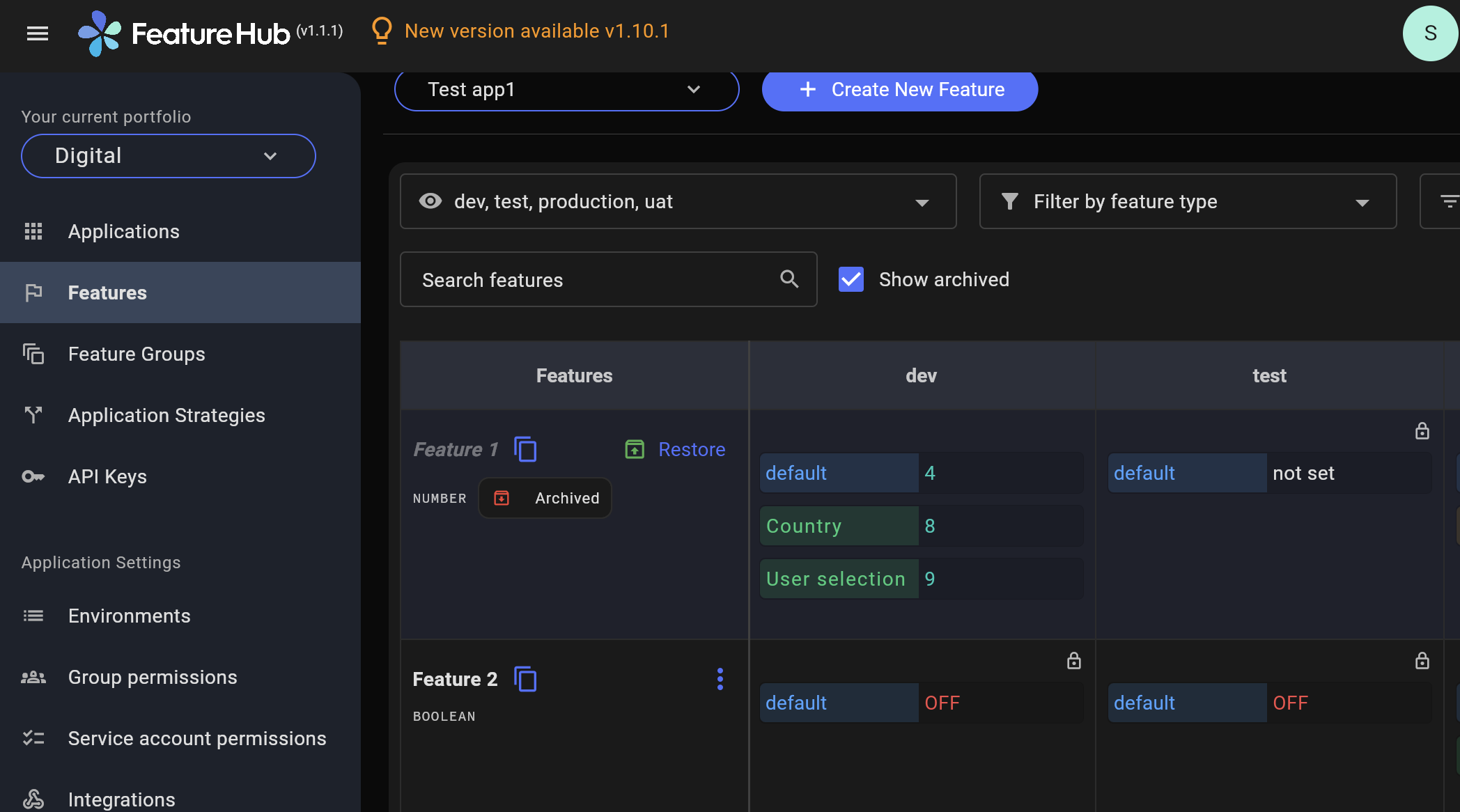
To view archived features, turn on the Show archived checkbox next to the search box on the Features console. Archived features are shown greyed out with a red Archived badge that indicates when they were archived. Their values are read-only while archived.
To restore (un-delete) a feature, click the green Restore button on the archived feature’s row and confirm. This clears the archived state and makes the feature active again across all environments, re-publishing it to the SDKs. Restoring a feature requires the same application specific permission to create, edit and delete features that deleting does.
| You cannot restore a feature if another feature with the same key already exists in the application (for example, if the key was reused after the original was deleted). Rename or archive the conflicting feature first, then restore. |
Locking a feature
Locking provides an additional safety net for a feature changes per environment when deploying incomplete code into production. It locks a feature, to prevent any changes to its default value, strategies, strategy values or "retired" status, for a given environment.
Typically, developers keep features locked until they are finished and ready to be used, for example when they are ready to be tested in one of the test environments. Another use case for feature locking would be when developers or testers keep it locked in production environment, indicating to release management team that it is not ready to be turned on. Only groups or service accounts with LOCK/UNLOCK or CHANGE_VALUE permission can lock or unlock the feature value. CHANGE_VALUE permission supersedes the LOCK/UNLOCK.

Who can update features and feature values
| See Groups Permissions for details on the various permission states a feature can have. |