Feature Filters
Overview
Feature Filters allow you to create arbitrary names to assign to features (not feature values) and service accounts.
At their most basic level, they can be used as feature labels, allowing grouping of features together into similar groups - by business function (billing, marketing, …), consuming entity (e.g. mobile, browser, server), or whatever groups you wish to use.
Once they have been defined, you can edit features to have multiple filters, and those filters can be used in the Feature Dashboard to limit what features you are currently looking at. For organisations that tend to have a fair number of outstanding features, this can make understanding what is going on easier.
Feature Filters
These exist at the Portfolio level. You can create or manage filters if you are a Superuser, Portfolio Admin or a person who can create or edit features.
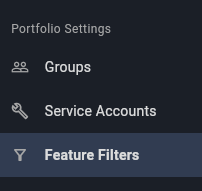
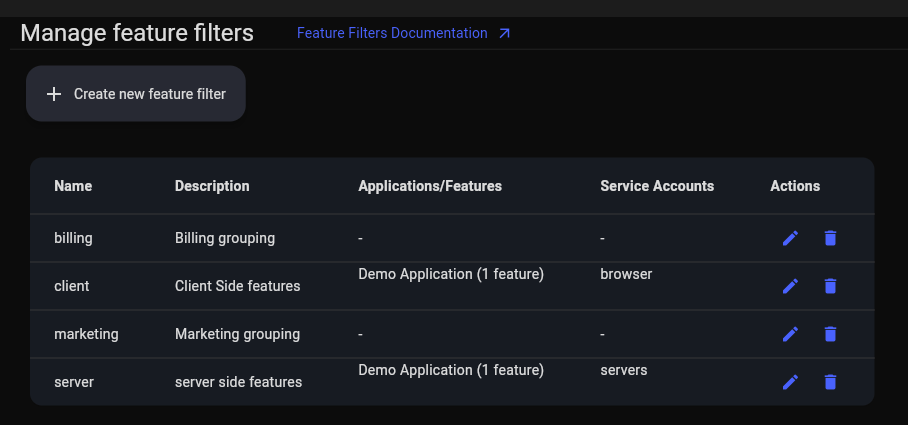
When you select it, it gives you a display of what filters are available, what is using them and the ability to edit, create and delete them.
Adding filtering to Feature Flags
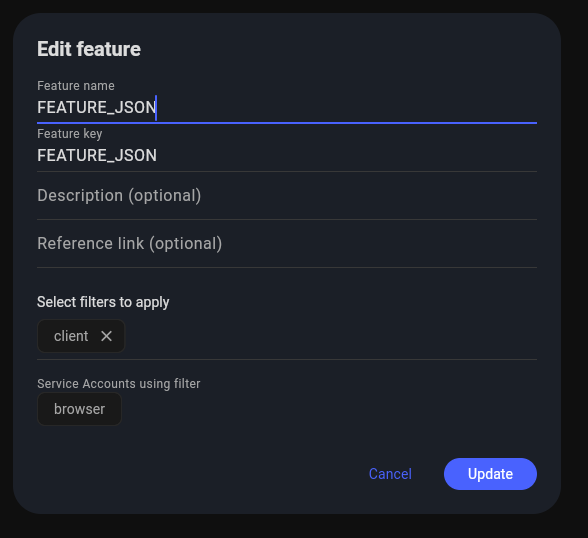
This is done on the Feature Dashboard, when you choose to Edit a feature. You now get the option to add one or more filters. Further, it will tell you what service accounts (if any) in the portfolio will be affected by your change.
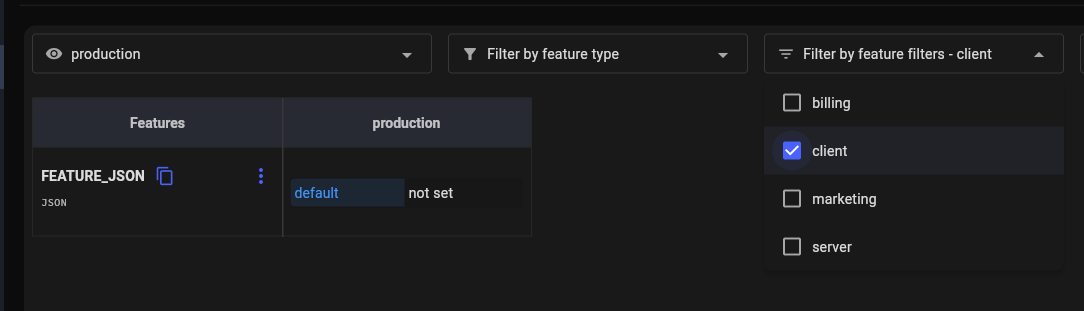
If you do this, you can also filter on the dashboard using these allocated features.
Adding filtering to Service Accounts
You can also allocate filters against Service Accounts when editing them.
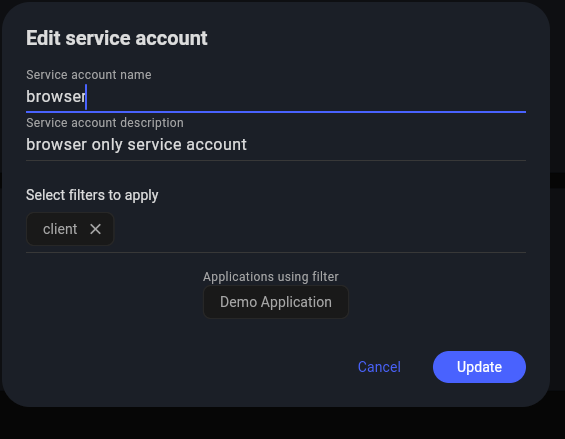
If you do this, then the features that turn up to those clients using that specific service account will be filtered by the named filters. For example, this would allow you to have different service accounts for browser, mobile and server and only serve the right set of features in your application to each type of client.
| If your service account has no filters it operates as normal and gets access to all available features. |